
Important! If you haven’t yet loaded songs into Helix Stadium, read Creating a Song in the Helix Stadium App first!
From the main Song screen, tap the current song’s name at the top of the display to open the Song List screen. The Song List lets you search, load, play, manage, and organize all your songs and playlists. You can also create playlists that reference the song files in your SONG LIBRARY folder, making it easy to manage their playback order and behaviors for your sets, rehearsals, and jams.


Important! Note that, once you edit and save changes to a Song (adding flags, editing flag parameters, changing tempo, etc.), those changes are reflected in all playlist instances of the song. Deleting a song from the SONG LIBRARY folder will remove all alias instances of the song from playlists. However, clearing songs from a playlist will not delete the original reference song file from the SONG LIBRARY folder.

-
Swipe up and down to scroll, and tap a song once to cue it.
-
Double-tap a song in the Song List to load it and exit to the main Song screen. If the previous song was already playing, the new song starts playback on load; if playback was not active, the new song loads but does not start playing automatically.


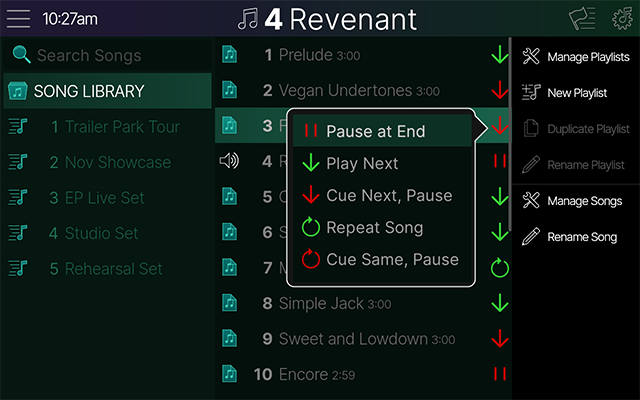
Note: Changing the End of Song action is the same as setting the End of Song parameter for the song's End Flag. This icon also appears in the End Flag's inspector header.
-

-

-

-

-

*Important! Stadium won’t nag you with pop-up dialogs constantly reminding you to save a song before loading another. Just remember always to save your current song to retain any edits you’ve made before another is loaded!

-
Manage Playlists: Tap to display the Manage Playlists screen, where you can select playlists to delete or rearrange them. See the following Managing Playlists section.
-
New Playlist: Tap to create a new playlist folder. Type in a name, tap

-
Duplicate Playlist: (Available when a playlist is selected.) Tap to select the desired playlist in the left column. Tap to duplicate the selected playlist, and a duplicate playlist is added, containing duplicate alias copies of all the original playlist's songs.
-
Manage Songs: Tap to display the Manage Songs screen, where you can select songs to copy to playlists, delete, or rearrange them. See the following Managing Songs section.
-
Rename Song: Tap to rename the current song.
Managing Playlists
The Manage Playlists screen lets you reorder and clear playlists.
-
From the Song List’s sidebar, tap


-
To reorder playlists: Tap to “check” the checkbox of any playlist that you wish to move or clear. Tap


-
Tap any checked playlist’s drag icon

-
Tap the sidebar’s

-
-
Tap

Managing Songs
-
From the sidebar, tap





To add songs to a playlist: Tap to check the desired songs and drag any checked song’s drag icon 
-
To create a new playlist and add songs to it: Check all songs you wish to include, then tap

Note: The currently loaded song appears with a speaker icon 
-
To reorder or delete songs within the current song list: Check any song(s) you wish to move or clear.
-
Tap on any drag icon
-
Tap

-
-
Tap