
Important! This section covers the Helix Stadium application version 1.4.0 (and later).
-
The Helix Stadium application, available for macOS and Windows® computers, can connect with the Helix Stadium device either via Wi-Fi or USB for remote editing.
-
A “USB-Update” application connection is also available specifically for updating Helix Stadium device firmware (see Device Firmware Updates).
-
The Helix Stadium application is supported on Helix Stadium family devices with firmware version 1.1.0 (or later).
-
For optimal performance and preset compatibility, we highly recommend updating to the latest available firmware and software versions.
-
The minimum versions for preset compatibility between Helix Stadium devices and the Helix Stadium Native plugin are: device firmware v1.3.2, Helix Stadium application version 1.3.3, and Helix Stadium Native version 1.33.
In addition to creating, editing, and managing your Stadium presets and asset files, the Helix Stadium app is also an integral part of the Stadium Showcase™ functionality, where you can build songs within the app by adding audio files and uploading songs to your Stadium device to add flags and markers, enabling real-time triggering of Stadium and external devices. The Helix Stadium application and Helix Stadium device firmware v1.2.0 (or later) are required for Showcase functionality. Once you've installed and connected the Helix Stadium application using the instructions on this page, please refer to the Creating Showcase Songs section for details.

Get The Helix Stadium Application
Download the latest, free Helix Stadium app installer for macOS or Windows from line6.com/software, launch the app installer, and follow its on-screen instructions to complete the installation.
Minimum System Requirements
The Helix Stadium application can be used on macOS and Windows computers with the following minimum system requirements. Later Operating Systems and higher hardware specifications are recommended.
-
Operating System:
-
macOS v14, Sonoma, 64-bit (Intel® and Apple Silicon processor types are supported)
-
Windows® 11 64-bit
-
-
CPU: Dual-Core 2.0GHz processor
-
Memory: 8 GB
-
Storage: 8 GB (to allow for firmware updates via the app)
-
Wi-Fi or Ethernet for connectivity to Helix Stadium hardware
-
Line 6 Helix Stadium ASIO® and WinUSB drivers (Windows only—no driver installation necessary for macOS)
-
Note that these drivers are installed by default with the Helix Stadium application v1.2 and later on Windows. A stand-alone Helix Stadium ASIO/WinUSB driver installer is also available at line6.com/software.
-
-
USB 2 of faster connectivity (for optional USB firmware updating of Helix Stadium hardware)
Connect to your Stadium Device
To use the Helix Stadium application, you have the option to connect to your Stadium device either via Wf-Fi or USB to “sync” its content for real-time preset loading, editing, and import/export of asset files. When Helix Stadium is not connected, the Helix Stadium app displays the Disconnected splash screen.

The Device Connection button on the app toolbar also displays the current status, as either not connected 

Application and Firmware Update Notification
Upon launch of the Helix Stadium application and your Line 6 account log in (via the app’s 

If prompted to update both the application and firmware, please update the Helix Stadium application first.
Updating the Helix Stadium Application
If prompted, click 


Updating the Helix Device Firmware
If a Firmware Update is available, it can be performed using the Helix Stadium application (version 1.4.0 or later) using the app’s “USB-Update” 
Managing the App-To-Device Connection
-
By default, your Helix Stadium Global Settings > Preferences > Remote Access is set to “Allow,” allowing connections from the Helix Stadium application via any computer. Optionally, you can set Remote Access to “Require PIN” with Wi-Fi and USB connections for added security using the following steps.
-
Go to Global Settings > Preferences and set Remote Access to Require PIN.
-
Also in Preferences, tap on the Set PIN button above Knob 5, type in your desired 4-digit PIN code, and tap

-
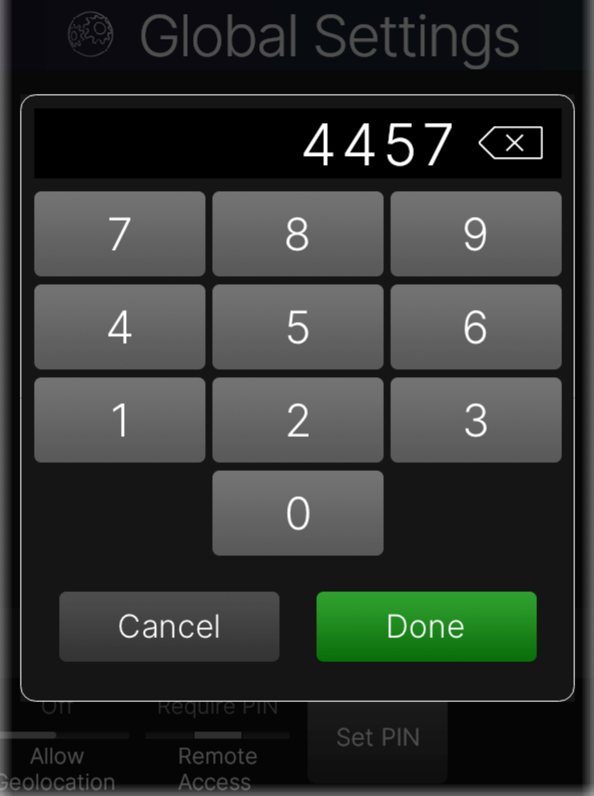
-
Connect Using Wi-Fi or USB
-
To Connect via Wi-Fi: Enable your computer’s Internet connection, and ensure your Stadium device is connected to the same network via Wi-Fi (or Ethernet)—see the Wi-Fi & Ethernet Connections.
-
To Connect via USB: Connect from the Helix Stadium device’s USB-C port to your computer’s USB port.
-
-
Launch the Helix Stadium app, click the
-
Click the

-
If desired, keep the Auto-connect at Launch switch on (in the right position)

-
If you prefer that the Auto-connect feature use an existing USB connection rather than a Wi-Fi connection, set the Prefer USB switch on (in the right position).
-
-
Click the Connect button


-
-
When a Helix Stadium device is connected via USB, you’ll see two USB-type entries in the “Available” pane, as shown above:
-
Connect to the “(USB)” entry

-
Connect to the “(USB-Update)” entry
-
-
If your Stadium device is not appearing in the “Available” pane, try clicking the Refresh button

-
If you configured your Stadium’s Remote Access for “Require PIN” in Step 1, enter your 4-digit PIN when prompted and tap

-
*Note: Alternatively, on app launch, you can click the 
If you encounter problems connecting the Helix Stadium app via Wi-Fi to your device with these steps, please use the Manual IP Address option below.

-
Once connected, the app’s toolbar button indicates the connection: Wi-Fi

Connecting Using Helix Stadium’s Manual IP Address
Some Wi-Fi router configurations may prevent the app from connecting to your Stadium device when using the preceding steps. If you encounter this issue, please use the following steps to manually enter your device’s IP address for connection.
Click to expand... Steps for Manual IP Address configuration.
-
On your Stadium device, go to the Main Menu > Wi-Fi Settings dialog, and note the IP address displayed there. This IP number is specific to your Stadium device's network connection.

-
Launch the Helix Stadium app and click the
-
Enter your IP address in the Manual IP Address field and click

-
The Helix Stadium app should then connect to your Stadium device via Wi-Fi using the entered IP address.
-
Note that the Auto-Connect feature is not supported for future connections using the Manual IP Address method. Repeat step 1 above, and your IP address should be remembered and appear in the Manual IP Address field, making it easy to complete step 2.
To Disconnect the Helix Stadium app from the Device
In most cases, you can simply exit the application. However, if you want to disconnect your current Wi-Fi or USB connection, such as if you want to change to the other connection type, you can do so in the Connect to Device dialog.
-
Click the connection indicator at the top left of the app window to launch the Connect to Device dialog.
-
Hover your mouse to the right of the green “Connected” device item at the top of the dialog and click its Disconnect button, as shown below.

Main Application Window


-
My Account: Click to Log In, Log Out, and Manage your Line 6 account. When signed in, your account name is shown with a green account icon.
-
Help: Click to access the About Helix Stadium & Legal Info for app version, copyright, and accreditation details. You’ll also find a link for Helix Stadium Online Support, which will direct you to this online Owner’s Manual.


The Home View
This main application window displays the current preset’s signal flow, where you can create and edit your presets, much like within the Stadium device's Home - Edit View screen. To the left of the app’s Home View, you can also access the Preset List to select a Setlist and load a preset directly into the Home View, as well as several other preset functions. Click the Manage button 

Creating New Presets
Choose a Preset Template to begin building your own custom tone. Select the Empty Preset template to start from scratch, or choose one of the other provided templates for a specific signal routing or input configuration.
-
From the Home View - Menu button

Tip: You can also create your own custom Preset Templates. Please see Saving Your Presets below.

Select New Preset from the menu, choose the desired template, and click 

A new, unsaved preset is created within the User Presets folder from the selected template.
-
Add and edit blocks as desired to build your preset, then be sure to save the preset

Tip: Use the Templates Librarian to manage your Preset Templates.
Editing Your Tones
The Helix Stadium app’s Home View screen is functionally very similar to your Stadium device's Home > Edit screen. You can perform the following tasks in the app and hear your edit results in real-time.
Add blocks: Click on an empty location on any path in the app’s Home View and select the desired model from the Model List at the bottom left of the screen.
Tip: When the Amp category is selected in the Model Browser, when you scroll down the Guitar Amp or Bass Amp list from the top, the Agoura type amp models appear first. When in the List view, a line appears to indicate where the Agoura type amps end and the HX type amps begin, as shown below.

Edit block settings: Click on any block in the app’s path to access its parameters in the Inspector panel - Edit Panel at the bottom right of the screen for editing. Also, see the following Using the Focus View section for more editing options.
-
Sliders or Knobs? Over the years, our customers have been pretty evenly split on their opinions for slider versus knob controls for parameter editing. Rather than weighing in on that debate, we’ve provided both options so you can choose. Use the Slider/Knob selector

-
Hold SHIFT + turn the Mouse Wheel or Drag on a Trackpad: When the mouse cursor is directly over a parameter slider, knob, or its numerical value, turning the mouse wheel/dragging on the trackpad adjusts its value.
-
When the mouse cursor is directly over the vertical scrollbar at the right of the Edit Panel, turning the mouse wheel/dragging on the trackpad scrolls the panel contents vertically.
(When the mouse wheel or trackpad are used without holding SHIFT, this scrolls the panel vertically, regardless the mouse pointer position within the Edit Panel.)
-
-
Hover your mouse cursor over any block in the signal flow to access the Block Bypass and Clear Block buttons that appear above it:

-
Within the app’s Inspector edit panel, right-click on an individual parameter slider/knob for additional functions, such as Reset, Controller Assignment, and more.
Tip: Quickly change an existing block between mono and stereo versions. Say you have a mono Cosmos Echo with your settings all tweaked, but now want to change it to a stereo Cosmos Echo without losing your settings…
-
Click on the Delay block in the signal flow to select it.
-
Click the mono/stereo selector to the right of the Cosmos Delay model name in the Inspector

-
Tap Yes when prompted to convert to stereo.
The stereo version of the model is now loaded with all your applicable parameter values retained! Note that…
-
Any existing Controller or Snapshot assignments are not retained when changing the model’s mono/stereo version.
-
You can do the same to change a stereo effect block to mono.
-
This option is not available for models that are only offered in mono or stereo, or for Legacy type models.
-
Click and drag any block left/right to change its position in a path. Drag a block down from a main path to create a split/parallel path, or drag a block to any other existing path to move it there.
-
Right-click on a block to access its Action Panel to create Bypass, Controller, MIDI, or Snapshot Control assignments, Copy, Paste, Clear, Add to Favorites, and more.
-
Remember to click the toolbar’s Save button

Using the Focus View
For editing, you can optionally tap the 

*Note: Some model types offer different controls and functions in their Focus View:
-
Cab modes offer a handy mic position controller.
-
EQ models display a parametric or graphic EQ interface.
-
Dynamics > Compressor models include a Gain Reduction meter.
-
Clones (Amp, Amp+Cab, Preamp, and Distortion clones) display the clone file’s metadata that you optionally entered during its creation. The metadata display is for reference only—the fields are not editable.
Saving Your Presets
Once you’ve edited your preset to your liking, save the preset to retain it in your Stadium’s Preset Library. Please also see the Saving Presets page for additional preset and setlist details.
-
Click the Save button

-
To save your changes to the currently saved preset, click the Save button

-
To name the preset, type in your desired name in the field at the top of the dialog

-
To save a unique copy of the preset into a different location, select the desired location in the preset list:
-
If the selected location is empty, click the Save As New button

-
If the selected location already includes a preset, click the Overwrite button

-
Note that saving a preset into a Setlist location also automatically saves its original preset file within the User Presets list (since Setlists contain only “aliases” that reference their original User Presets).
-
-
To save the preset as a Preset Template, click the Save Template button

-
To exit the Save Preset dialog without saving, click the Cancel button

Note: Factory Presets are read-only. Therefore, the Factory Presets folder or list is not selectable within the Preset Save dialog. However, you can use the above “Save as New” steps to save a unique, editable copy of any Factory Preset in the User Presets folder.
Configuring Bypass and Controller Assignments
Within the Helix Stadium application, Bypass and Controller Assignment options are available via right-click Action menus, as described in the following sections. Please also refer to the Stadium device’s Bypass and Control Assignment page for additional details regarding assignment types and behaviors.
Creating and Editing a Block Bypass Assignment
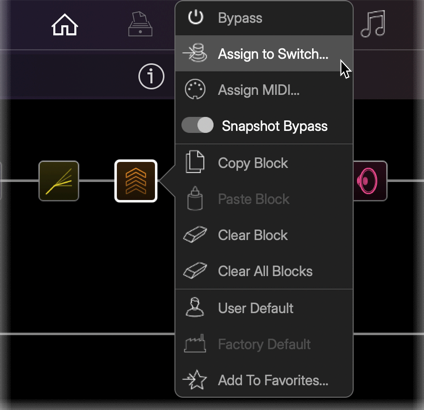
Right-click on the block for which you want to create or edit a Bypass assignment to open its Action menu.
-
To assign to a Switch, Pedal, or XY controller: Choose Assign to Switch. In the Controller Assign dialog that appears, select the specific switch, pedal, or external controller to which you want to assign the block bypass. To remove an existing Bypass assignment, select “None.”
-
To create a MIDI Bypass assignment for the block: Select Assign MIDI from the block’s Action menu. In the MIDI Assign dialog that appears, choose the desired MIDI Command type and its additional Value or Note options. To remove an existing MIDI Bypass assignment, select “None.”
-
To additionally configure the block so that its Bypass is stored and recalled via Snapshots: By default, the Set the block Action menu’s Snapshot Bypass switch is enabled

Creating and Editing a Parameter Controller Assignment
Practically any parameter for any block can be assigned to a switch, pedal, XY Controller, external, or MIDI for remote control. Most assigned command parameters also allow control via Snapshots. These options are configured in the app’s Parameter Panel.
-
Click the block you want to create or edit a Controller assignment for.
-
Within the lower right Parameter Panel, right-click on the desired knob (or slider, if using the panel’s Slider View) to open its Action menu.

-
To assign to a Switch, Pedal, or XY controller: Choose Assign Controller. In the Controller Assign dialog that appears, select the specific switch or controller to which you want to assign. To remove an existing parameter assignment, select “None."
-
To create a MIDI Bypass assignment for the parameter: Select Bypass MIDI Control from the block’s Action menu. In the MIDI Assign dialog that appears, choose the desired MIDI Command type and its additional Value or Note options. To remove an existing MIDI parameter control assignment, select “None.”
-
To additionally configure the parameter so that its values are stored and recalled via Snapshots: Set the parameter Action menu’s Snapshot Control switch to its right position to enable it

Tip: You can custom-name the label and/or recolor the LED for any assigned Stomp footswitch within the Command Center window (see next section). Right-click on the desired Stomp A or B footswitch within the app’s Command Center - Stomp A or Stomp B tab and choose Label/Color.
The Command Center View
This view displays the Command Center window for editing the Command Center options for the current preset. All functions within this window are the same as editing within the Stadium device’s Command Center screen. Please refer to the Command Center page for details.
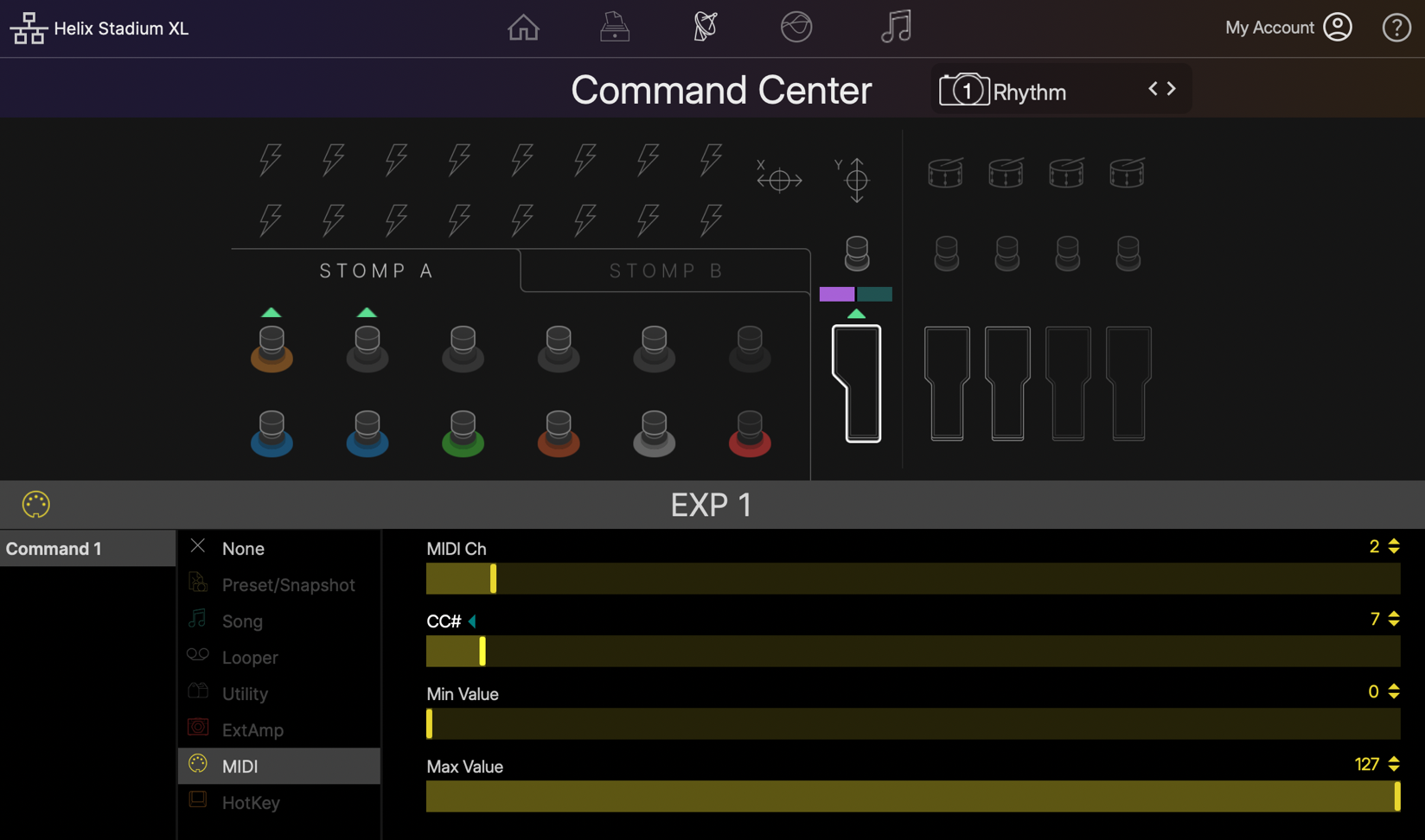
Configuring a MIDI CC assignment on a pedal controller
Tip: To custom-name the label and/or recolor the LED for any assigned Stomp footswitch, right-click on the desired Stomp A or B footswitch within the app’s Command Center - Stomp A or Stomp B tab and choose Label/Color.
Tip: Note that the EXP 1/EXP 2 Pedal controller in the app’s Command Center includes the purple and turquoise buttons above it (Stadium XL 

Snapshot Control
For Command Center parameters that support it, you can right-click on a parameter slider and toggle the Snapshot Control switch on/off. Enabling Snapshot Control stores its values with snapshots and sends them on snapshot recall. See the Command Center page for additional info.

The Global EQ View
This view displays the Global EQ, providing access to the three Global EQs—one for each Matrix Mixer 1/4”, XLR, and Phones layer. All functions are the same as editing within the Stadium Device’s Global EQ screen. Please refer to the Global EQ page for details.
