
We recommend that you perform firmware updates for Helix Stadium directly, using its built-in Wi-Fi/Ethernet connectivity (see the Quick Start instructions). But, if those steps are not available to you, you can alternatively update using the Helix Stadium application (App version 1.4.0 and later) and a USB-C® connection to your Helix Stadium hardware, provided your macOS or Windows computer is connected to the Internet.
Please note the following computer setup tips for smooth updating:
-
Turn off your computer’s screensaver and disable any of its power-saving features that may cause it to go to sleep while the firmware installation is in progress.
-
If using a desktop/tower computer, connect to its rear-panel USB port, near the power cable connection, to reduce the chance of intermittent USB interruptions.
-
If using a laptop, connect it to AC power before starting an update to avoid running out of battery power.
-
First, if you currently have the Helix Stadium application connected to your Helix Stadium device for editing via Wi-Fi or USB, disconnect the app in the Connect to Device window (also see the App to Device Connection steps).

-
Connect from Stadium’s USB-C port directly to your macOS or Windows computer’s USB port, and launch the Helix Stadium application.
-
Click on the app toolbar’s My Account button

-
Click the app’s Connection Indicator

-
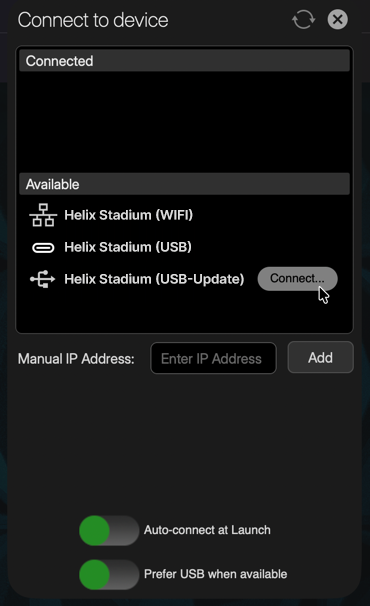
Within the Connect to Device dialog, click the Connect button for the “Available” USB-Update entry

-
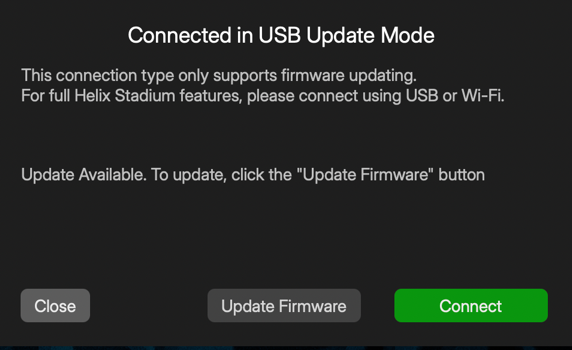
Click Update Firmware to proceed with the update.
-
Optionally, click Connect to return to the Connect to Device dialog, or click Close if you want exit the Update process.
Note: The standard USB connection option 
-
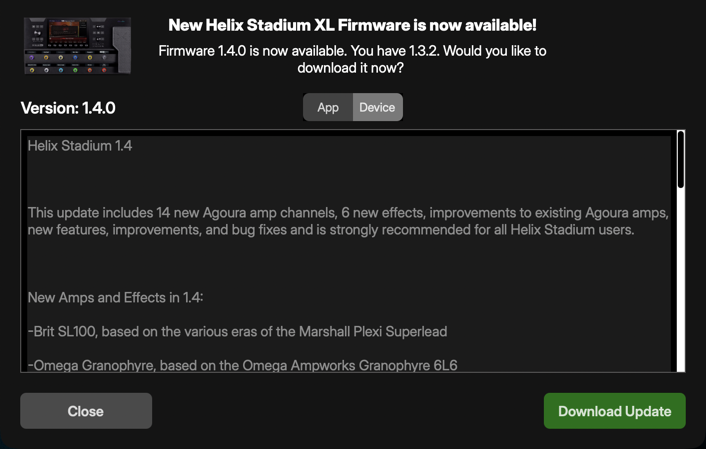
Click the Device tab within the app’s Update window to display the available firmware update details.
-
Read the Release Notes or any special instructions for the available update, then click

The download progress will appear on the app screen. Allow the download to complete.
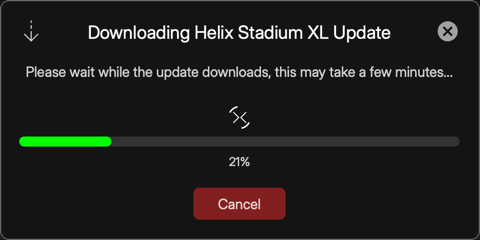
Once Download Complete appears, click on 

-
The “Transferring OTA Update” process will begin, showing its progress in the app window.
Do not disconnect the USB cable, power off, or disturb the device or your computer until the process completes!

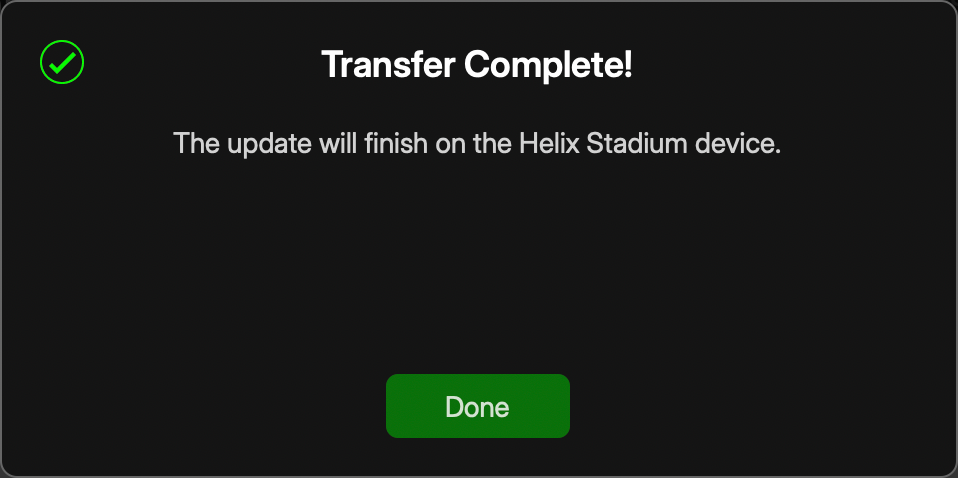
Once the transfer is complete, click 
-
You’ll see the progress on your Helix Stadium device’s main display, and the update will run completely with no interaction needed. Please note that it is normal for Stadium to restart automatically during the process.
-
Once the update completes and your Stadium device displays its Welcome to Helix Stadium screen, you can launch the Helix Stadium app, connect it to your Stadium for editing as covered in the Connect to Your Device section, and begin using your updated device.