
The Flag List Window
The Flag List window shows all the current song’s flags in a list along with select settings. Tap the Flag List button 
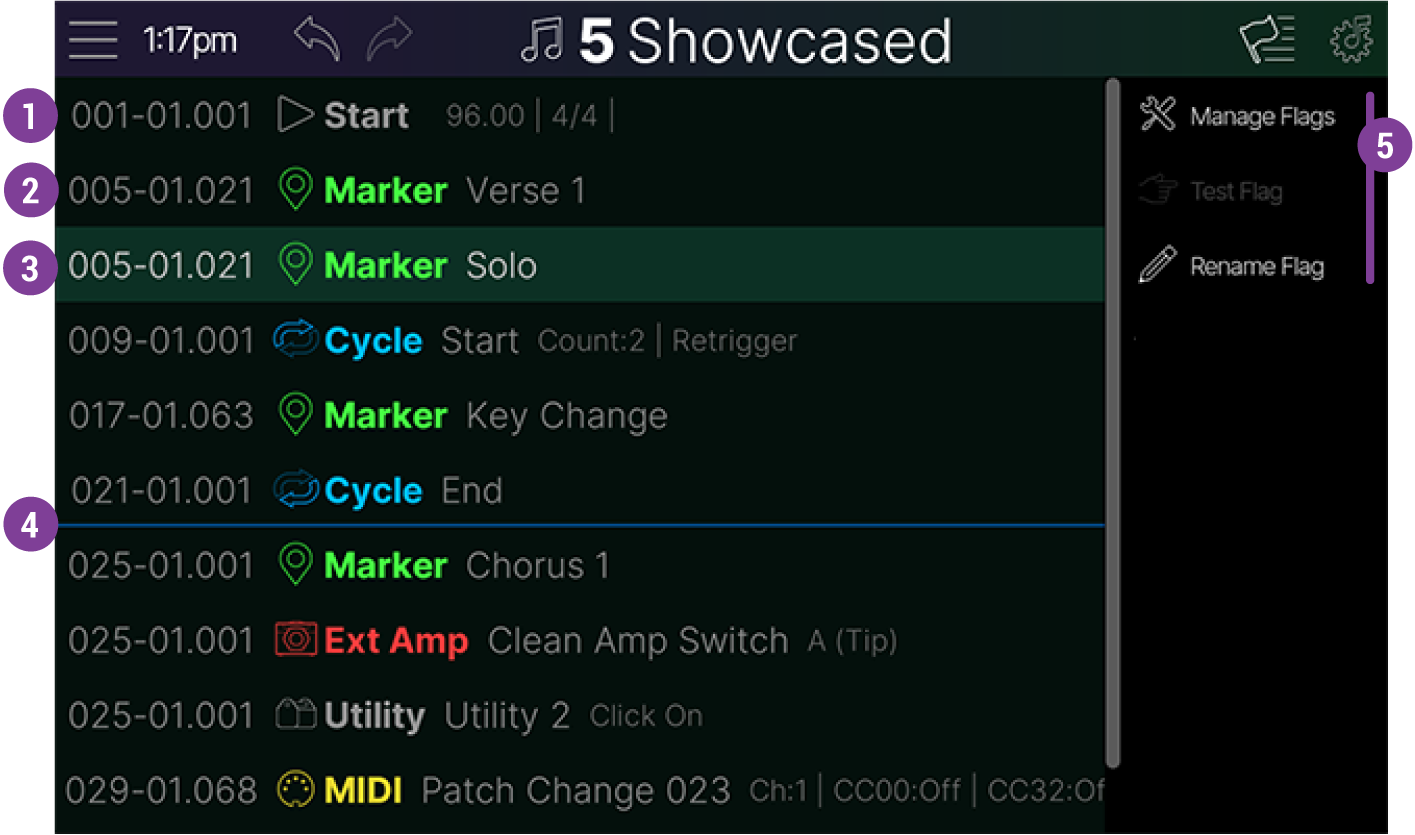
Swipe up/down within the list area to scroll and view all flags. Tap on a flag or turn the Lower Knob to select (highlight) a flag in the list.




-
Manage Flags: Enters the Manage view where you can copy, paste, clear, reorder, and move the time position of selected flags. See the following Managing Flags section.
-
Test Flag: Available for Preset/Snap, Looper, Utility, Ext Amp, MIDI, and Hotkey flag types. Tap Test Flag to immediately trigger the flag and test its configured functions.
-
Rename Flag: For Marker, Looper, Utility, Ext Amp, MIDI, Hotkey, and Time flag types, tap to enter a descriptive name for the flag. Its name will appear in this list window as well as on the main Song screen when the flag is selected.
Tip: If you rename a Marker type flag (tap on the pencil icon 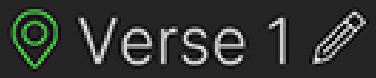
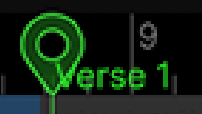
To exit the Flag List, press the Song button 
Managing Flags
-
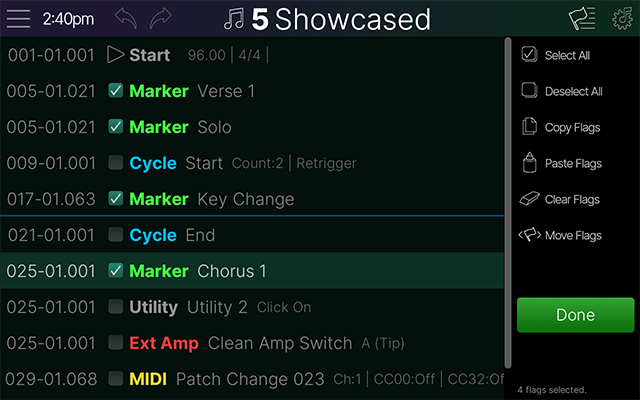
From the Flag List window, tap

-
Check box(es) to select one or more flags for editing. Optionally, tap Select All to check all flags, or Deselect All to clear all checked flags. (Start and End flags cannot be checked.)
Tip: Remember that you can use the Undo or Redo button 
-
Copy Flags: Copies the checked flags to the clipboard for pasting.
-
Paste Flags: Tap on the flag in the list at the time position where you want to paste; your pasted flag(s) are added below the selected flag at that same time position.
-
Clear Flags: Tap to clear checked flags from the song.
-
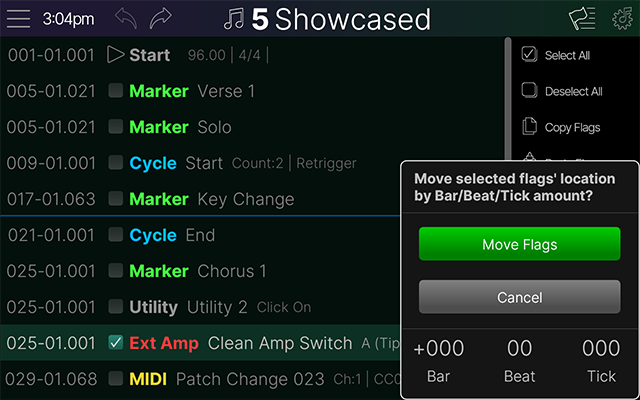
Move Flags: Tap to open the Move dialog (below). Turn the Bar (Knob 6), Beat (Knob 7), and Tick (Knob 8) for the desired + or - time position change for the checked flags. Tap

-
Tap