
About Favorites
Scrolling through a seemingly never-ending list of Amps, Cabs, Clones, and Effects can be a slog, but it doesn’t have to be. Helix Stadium Native lets you curate your favorite models from any category and organize them however you want. What’s more, Favorites can remember all your meticulously dialed-in settings, as well as the block’s bypass state, MIDI controller assignments, and the Snapshot Control switch states for parameters. Favorites appear at the very top of the Model List, so your favorite Distortion, Amp, Cab, Clone, Modulation, Delay, Reverb, etc., are found simply by clicking on this category.
Tip: Favorites saved and exported from Helix Stadium devices (.hsf files) and from the original Helix Native plugin and Helix/HX family devices (.fav files) can be used in Helix Stadium Native. See the Preset Compatibility section for additional details.
Tip: In addition to adding blocks as Favorites, you can also set any model’s parameters to your preferred values and save them as the user default values for each time you load the model. See Creating User Default Settings.
Note: Input, Output, Split, and Merge-type blocks cannot be added as Favorites.
Adding a Favorite
-
Dial in any Amp, Cab, Clone, or Effect block exactly how you like it.
-
If you want the block to automatically load bypassed, bypass the block before adding it as a Favorite.
-
Also, feel free to create MIDI Control assignments for any of its parameters, and enable the Snapshot Control for any parameters as desired. Favorites can store and recall these assignments. See the Automation/Controller Panel and Snapshots sections for details.
-
-
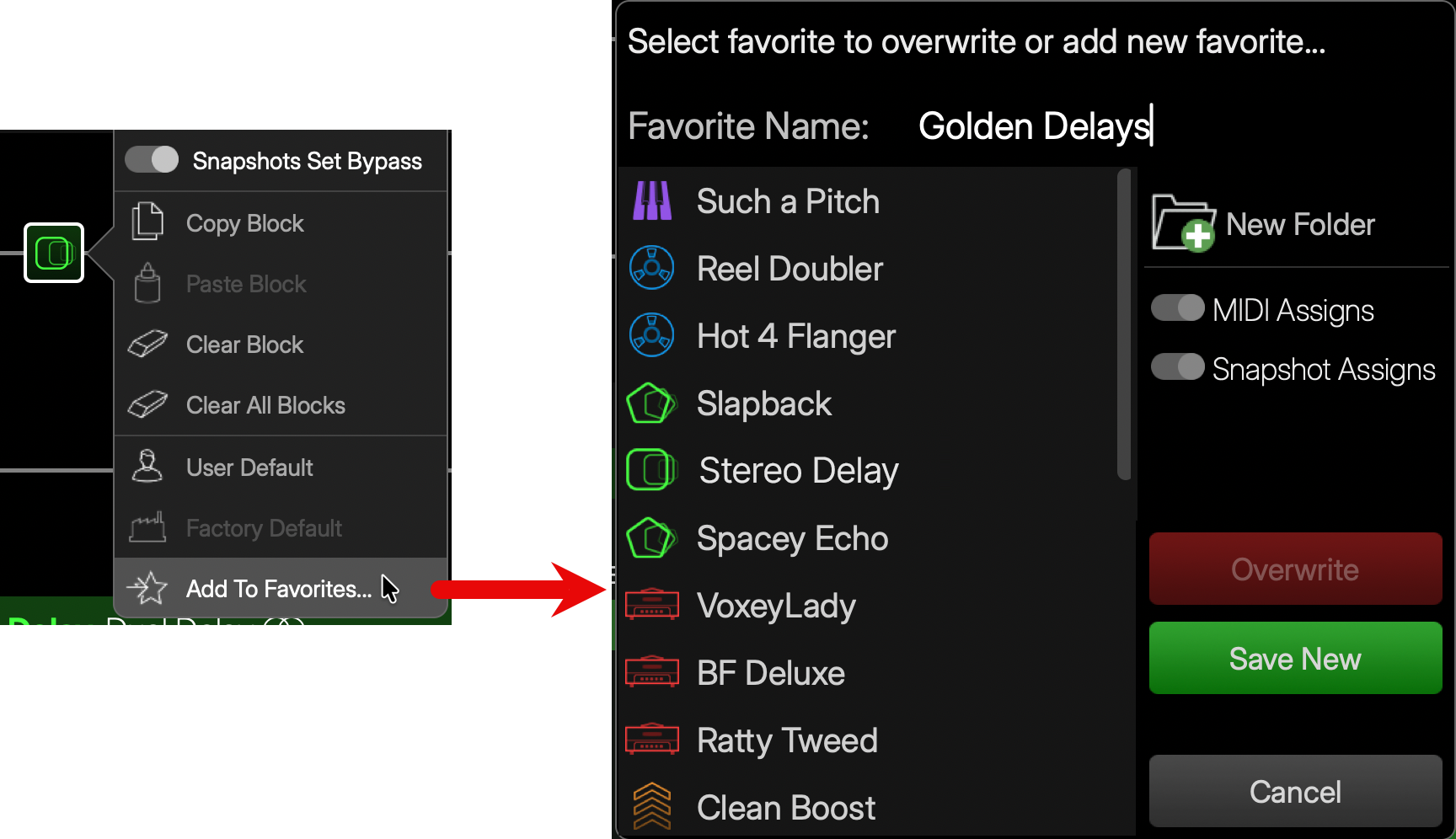
Right-click on the block to open its Action Panel (shown below) and tap Add to Favorites…
-
Alternatively, you can use the Focus View’s Add to Favorites sidebar button to launch the Add Favorites dialog.
-
-
Configure the sidebar options in the Add to Favorites dialog as desired. By default, the Favorite uses the block type as its name, or you can click in the Name field at the top and enter a custom name, as shown above. Once folders are added, you can move your saved Favorites between folders to organize them as desired using the Manage Favorites window. See the Importing and Managing Favorites section below.
-
New Folder: Optionally, if you want to add the Favorite to a new folder, click

-
Toggle the sidebar options “On” to choose which you want stored with the Favorite (if any):
-
MIDI Assigns: Retains all the block’s MIDI Control parameter assignments.
-
Snapshot Assigns: Remembers which parameters are enabled for Snapshot Control.*
-
-
*Note: Favorites don’t store and recall the actual parameter values for all 8 snapshots, only that the parameters are snapshot-enabled.
Parameter Automation assignments are not stored or recalled with Favorites.
-
Save your Favorite using one of the options:
-

-

-

-
Using Favorites
Once you’ve added Favorites, they appear in the Model List - Favorites category and can be added, moved, copied, and edited like any Amp, Cab, or Effect. Note that when a Favorite is selected and added to the preset, its name appears at the top of the Edit Panel with a white star to indicate it as a Favorite, as shown below.

Favorites' parameters, assignments, and snapshots can all continue to be edited via the Edit and Automation/Control Panels. To save changes to the Favorite file, right-click the Favorite block, select Add to Favorites, and use the Overwrite function to update the Favorite file in your library with your new settings.
Importing and Managing Favorites
When the Model List > Favorites category is selected, click the 

-
To reorder Favorites within the dialog, simply click and drag them up or down in the list as desired.
-
Click the Close button

-

-

-

-

-

-

-

-

-

*Note: For Favorites (.hsf files) created in the Helix Stadium Native plugin, their saved MIDI and Snapshot Control type assignments are retained on export and import into the Helix Stadium Native plugin.
For all Favorites created on Helix Stadium hardware (.hsf files) and on original Helix/HX devices or Helix Native (.fav files), all assignments are discarded and not available when the Favorite is imported into the Helix Stadium Native plugin.
For the Helix Stadium Native Intro version: You can only import Favorites that were created using the Full Helix Stadium Native version, a Stadium device, or the original Helix Native plugin if the Favorite references Amp/Cab/Effect models included in the Intro version.