
Although they may not seem as exciting as amps or effects, Input, Output, Split, and Merge blocks are integral to the sound and performance of your presets. Use these blocks to create parallel and extended serial routings, gain-stage your levels, and more. Refer to Signal Path Routing Options for additional details.
Input Blocks
By default, all presets, even “empty” New Presets, include at least one Input block (at the left of Path 1A), but each preset can have up to four Input blocks (one each for Path 1A, 1B, 2A, and 2B). Click on any path’s Input block to select its options.
-
To Select the Input Source: Choose Host to receive audio from the current track, or choose None for no audio input.
-
When Host is selected for a path’s Input Block, its Trim and built-in Noise Gate parameters can be edited in the Edit Panel, as listed in the following table.
|
Host - Input Block Parameter |
Description |
|---|---|
|
Trim |
Sets the path’s input level. Important! Setting Trim to a value higher than 0.0 dB (or lower) effectively boosts (or attenuates) your signal into the first block, which may result in a less-than-accurate response. |
|
Gate |
Turns the Input block’s built-in noise gate on and off. By default, the Gate is Off. |
|
Threshold |
Sets the noise gate’s Threshold. The gate “opens” when the signal’s level exceeds the Threshold, allowing audio to pass through. The gate “closes” when the signal’s level drops below the Threshold. Adjust Threshold so that only softer, unwanted signals (such as noise or hum) are gated. |
|
Decay |
Controls the length of time it takes for the open noise gate to close once the signal drops below the Threshold. Increase Decay if you want the gate to gradually lower the signal instead of chopping it off abruptly. |
Tip: Within an empty New Preset, only the main Path 1A and Path 2A are shown. You can also create Paths 1B and 2B as parallel paths, each with its own Input block. See Signal Path Routing Options.
Output Blocks
By default, all presets, even “empty” New Presets, include at least one Output block (at the right end of Path 1A), but each preset can have up to four Output blocks (one each for Path 1A, 1B, 2A, and 2B). Click on any path’s Output block to select its options.
-
To Select the Output Destination: Choose Host to receive audio from the current track, or choose a path destination (Path 2A, Path 2B, or Path 2A+B) to route the current path’s signal into the input of another path for an extended “serial” configuration. Optionally, choose None for no path output.
-
Once an output destination (other than None) is selected, the block’s parameters are available in the Edit Panel, as listed below.
|
Output Block Parameter |
Description |
|---|---|
|
Pan |
Controls the balance between the left and right channels of the path’s output. When set to Left 100, the signal is heard only from the left channel; when set to Right 100, it is heard only from the right. |
|
Level |
Sets the path’s overall output level. |
Split and Merge Blocks
Split and Merge blocks can be added to create parallel or dual paths, which can be very useful for isolating specific effects, creating alternate switchable routings, and more. See Signal Path Routing Options.
All paths are stereo. When a Split block is added, it splits the signal into Path A and Path B in parallel. When a Merge block is added, it mixes Path B back into Path A.
Note: The overall output level of the signal increases slightly with each additional parallel path. Adjust the Merge block’s Level parameter for the desired output level.

Adding a Split Block
-
Tap an empty area on Path 1A or Path 2A to select an empty block location.
-
Right-click on the empty location and choose Split. (Optionally, the Split option can also be selected from the Model Browser’s None category.) A Split > Y block is added, and a Path B is created with its own Output block.
-
Alternatively, drag an existing Amp, Cab, or Effect block down slightly, and it’ll be added to a new parallel path B connecting to Path A with Split > Y and Merge blocks.
-
-
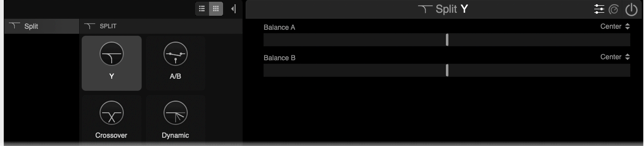
To change the type of Split: Click on the Split block on the signal path and select one of the Split types (Y, A/B, Crossover, and Dynamic, as described below.
-
Adding a Split to the left of an existing Merge block on path A automatically joins the existing parallel path.
-
Multiple Split and Merge > Mixer blocks can be added to Path A for several parallel paths, one after the other. For example, say you want the signal to split into parallel Amp blocks, merge into a dual Cab block, and later, split into parallel Delay and Reverb blocks, and then merge again before the Output. There’s a lot of flexibility here.
-
To create a Path B Input block, drag the Split down to Path B—or—clear the Split.
Tip: Split block parameters can also be automated or controlled via MIDI CC—see Automation/Controller Panel.
Split > Y
Adding a Split block adds a Split > Y by default. With a Split > Y block, the stereo input signal is sent to stereo Paths A (upper) and B (lower) evenly, but the Balance A and Balance B parameters can be used to separate the incoming signal into separate left (to Path A) and right (to Path B) channels.
|
Split Y Parameter |
Description |
|---|---|
|
Balance A |
Adjusts the stereo balance (pan) of the signal sent to Path A (upper) and Path B (lower). To split the signal into separate left and right channels, set Balance A to Left 100 and Balance B to Right 100. |
|
Balance B |

Split > A/B
Split > A/B allows for tactile control over which path your signal is routed to—Path A (upper) or Path B (lower).
|
Split A/B Parameter |
Description |
|---|---|
|
Route To |
Determines the amount of the signal sent to Path A (upper) vs. Path B (lower). When set to “Even Split,” the signal is split evenly between the two stereo paths. |

Split > Crossover
Split > Crossover splits the incoming signal into high- and low-frequency bands, allowing you to route and process them independently. For example, this can be useful with electric bass, where distortion may be applied only to the high frequencies, allowing the non-distorted low frequencies to pass through.
|
Split Crossover Parameter |
Description |
|---|---|
|
Frequency |
Determines the crossover point at which your signal is split into high and low frequencies. Any signal above this frequency is sent to Path A (upper); any signal below this frequency is sent to Path B (lower). |
|
Reverse |
When On, reverses the path assignments (any signal above the crossover frequency is sent to Path B, any signal below the crossover frequency is sent to Path A). |

Split > Dynamic
Split > Dynamic lets you route your signal based on input level or even your playing dynamics. For example, if Path A has Delay and Reverb blocks and Path B has a Distortion, playing softly (or rolling your guitar’s volume knob back) will apply more Delay and Reverb, whereas playing harder (or rolling your guitar’s volume knob up) will lower the Delay and Reverb and add Distortion.
|
Split Dynamic Parameter |
Description |
|---|---|
|
Threshold |
Determines the signal level above which gets routed to Path B. Softer input (signal below the Threshold) is routed to Path A; louder input (signal above the Threshold) is routed to Path B. |
|
Attack |
Determines how quickly the signal is routed to Path B once reaching the Threshold. |
|
Decay |
Determines how quickly the signal returns to Path A once it falls below the Threshold. |
|
Reverse |
When On, reverses the path assignments (any signal above the Threshold value is sent to Path B, any signal below the Threshold value is sent to Path A). |

Adding a Merge Block
The purpose of a Merge block is to rejoin and mix the Path B signal back with Path A. Path B can be either rejoined after a Split block or when it exists as a complete parallel path with its own Input block.
-
Tap an empty area on Path 1A or Path 2A to select an empty block location.
-
Right-click on the empty location and choose Merge. (Optionally, the Merge option can also be selected from the Model Browser’s None category.)
-
A Merge block is added, and a Path B is created with its own Input block (provided a Split block hasn’t already been added to the Merge’s left).
-
Note that there is only one type of Merge block, and Path B’s output is routed to and mixed with Path A by the Merge block.
-
Alternatively, drag an existing Amp, Cab, or Effect block down slightly, and it’ll be added to a new parallel path B connecting to Path A with Split > Y and Merge blocks.
-

-
Adding a Merge to the right of an existing Split block on path A automatically joins the existing parallel path.
-
Multiple Split and Merge > Mixer blocks can be added to Path A for several split-parallel paths, one after the other. For example, say you want the signal to split into parallel Amp blocks, merge into a dual Cab block, and later, split into parallel Delay and Reverb blocks, and then merge again before the Output. There’s a lot of flexibility here.
-
To create a Path B Output block, drag the Merge down to Path B—or—clear the Merge block.
Merge Parameters
|
Merge Block Parameter |
Description |
|---|---|
|
A Level |
Adjusts the output level of Path A (upper). |
|
A Pan |
Adjusts the left/right stereo balance of Path A (upper). When set to Left 100, only the left signal is passed through; when set to Right 100, only the right signal is passed through. |
|
B Level |
Adjusts the output level of Path B (lower). |
|
B Pan |
Adjusts the left/right stereo balance of Path B (lower). When set to Left 100, only the left signal is passed through; when set to Right 100, only the right signal is passed through. |
|
B Polarity |
Inverts the polarity of Path B. Typically, this should be kept on the default “Normal” setting. |
|
Level |
Adjusts the overall output level of the Merge block. |