
Helix Stadium Native’s effect blocks offer hundreds of effects of all types, most of which are available in both Mono and Stereo versions. Also included are selected effects from the classic Line 6 DL4™, DM4™, MM4™, and FM4™ stompboxes, as well as M13®, M9®, and M5® processors—these are offered within the Amp and Effect models' Legacy subcategory.
Tip! For the complete, current lists of all Amps, Cabs, and Effects included in Helix Stadium family products, along with the original gear they are based on, please see the Helix Stadium Model List on the Line 6 website.
Note that the Helix Stadium Native Intro version includes a subset of the Amp, Cab, and Effect models of the complete version. Please see the Helix Stadium Native License Versions section.
Note: Helix Stadium Native does not support the use of Looper models, which are available on Helix Stadium hardware. However, if a hardware preset loaded in Helix Stadium Native includes a Looper model, it will appear in the signal flow as disabled, as shown below.

Any Looper block will be retained in the preset for hardware compatibility (unless you manually clear it). All other Helix Stadium hardware effect models are supported in Helix Stadium Native.
Distortion
Boosts, Overdrives, Distortions, Fuzzes, and other forms of dirt. Helix Stadium Native also supports the use of Helix Stadium Distortion Proxy Clones. You can also add Distortion-type clone files to Helix Stadium Native—please see Proxy™ Clones for details.

Delay
Echo and Delay units of all flavors: Slapback, Doubler, Tape Machine, Platter, Analog, Digital, Reverse, and more. Delay repeats (the Time parameter) can optionally be synced to host tempo, per preset, or per snapshot tempo. See the following Common Effect Parameters section.

Reverb
Ambiences of all types are offered: Room, Plate, Hall, Chamber, Spring, Shimmer, Nonlinear, and more. On some Reverb models, the Decay parameter can optionally be synced to host tempo, per preset, or per snapshot tempo.
Modulation
Add some swirl and dimension with this large assortment of Modulation effects: Tremolo, Vibrato, Phase Shift, Flanger, Chorus, Rotary, and more. On most modulation models, the Rate/Speed parameter can optionally be synced to host tempo, per preset, or per snapshot tempo. See the following Common Effect Parameters section.
Dynamics
Level up with Dynamics tools for all stages of your signal flow: Compressors, Gates, AutoSwell, Feedbacker, and more.
Using the Sidechain Parameter
Many Helix Stadium Native Dynamics (and some Filter) models include a Sidechain On/Off parameter, which allows you to configure your DAW project to route the output of another audio, instrument, aux, bus track, or audio interface input as the “source” that triggers the model's gain reduction.* For example, you can add Helix Stadium Native on a Bass audio or instrument track, add a Dynamics > Deluxe Comp to its signal flow, then route the output of the Kick Drum track (or a bus that the Kick Drum track is sent to) as the Sidechain source so that the Bass volume is “ducked” whenever the Kick Drum’s level peaks to a specific threshold to allow the two tracks to mix together more evenly.
Sidechain routing needs to be configured in your DAW host first. In some DAWs, a Sidechain menu in the plugin window header lets you select another audio track (as in Cubase or Logic Pro, shown below).
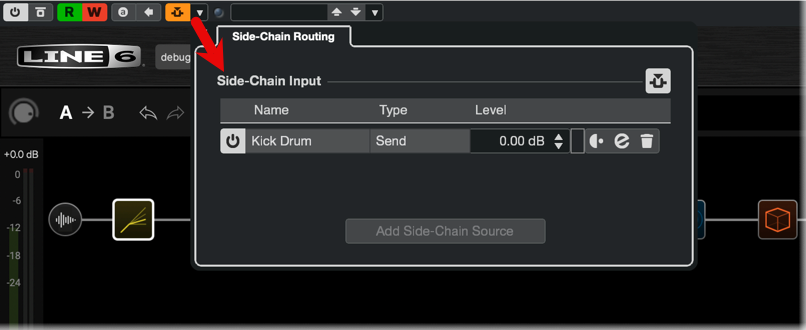
Cubase: Click the “Activate/Deactivate Side-chaining” button to enable it, then click the “Set Up Side-chain Routing” menu button at its right and select the project’s Sidechain source track or bus.

Logic Pro: Click the “Side Chain” menu and select the project’s source Audio, Instrument, Bus track, or Input .
In some DAWs, Sidechaining entails routing the desired source track to a Send, Bus, or Aux destination. Then, the Send/Bus/Aux can be selected in the “Sidechain” or “Key” input menu in the header of the Helix Stadium Native plugin window, as with Pro Tools, shown below.

Pro Tools: Click the “Key Input” selector and select the Sidechain source bus.
Once the above routing is complete, set the Helix Stadium Native - Dynamics effect's Sidechain parameter to “On” to be triggered from the selected sidechain input, as shown below.

The Dynamics Focus View
When the Focus View is enabled for any Dynamics model (other than the Autoswell and Feedbacker), a Gain Reduction meter is included in the view. As you adjust the Focus View or individual parameter settings, you’ll see the yellow “GR” meter measure the amount of input-level reduction in real time, as shown below.


EQ
Expertly sculpt and shape your tone with this assortment of Equalization tools.
Pitch and Synth
The Pitch-based and Synthesis models in this category offer a wide range of extreme effects, including pedal-controlled and polyphonic pitch shifting, intelligent harmonization, 12-string emulation, ring modulation, oscillating synth filters, and more.
Wah and Filter
A collection of classic wahs and a stash of familiar to bizarre filter-based effects are found here.
Note: The Mutant Filter, Mystery Filter, and Autofilter models each include a Sidechain On/Off parameter, allowing the model to be triggered by the input of another audio, aux, or bus track in your DAW project. Please see the preceding Using the Sidechain Parameter description for details.

Volume and Pan
This category’s tools are excellent for building tones with even greater functionality: Volume for a volume adjustment at any point in the signal flow, Gain for a clean boost, and Stereo Width, Imaging, and Pan for modifying your stereo image.
Common Effect Parameters
Given the sheer number of effect models available, it would take numerous pages to document all their parameters! However, many parameters are common among effects, so we’ve included a table here for your reference.
Most Effect parameters are available for Automation, Snapshot, and MIDI Control assignment—please see the Automation/Controller Panel section.
For details on editing Effect models, please refer to the Creating and Editing Tones section.
Tip: In the Edit Panel, double-click on the text name of any slider or knob to open its Parameter Description panel for helpful details, as shown below.

Note: Distortion clones offer their own set of parameters—please see Proxy Clones > Clone Parameters.
|
Common Parameter |
Description |
|---|---|
|
Drive / Gain |
Adjusts the amount of overdrive, distortion, or fuzz. |
|
Bass |
Adjusts the low frequency level of the effect. |
|
Mid |
Adjusts the midrange frequency level of the effect. |
|
Treble |
Adjusts the high frequency level of the effect. |
|
Speed / Rate |
Common in Modulation and some Delay and Reverb effects, adjusts the rate of amplitude or pitch modulation, with higher settings providing faster rates. Click the little clock icon available on the Modulation Speed or Rate control to toggle the modulation as Synced to tempo (a note division value can be selected) or Not Synced (a Hz value can be selected), as shown below. Also see Tempo Controls. Not all Rate parameters offer Sync, as they may be non-linear and highly interactive. 
Tempo Sync enabled
|
|
Time |
Found in Delays, adjusts the delay/repeat time, with higher settings providing longer delays. Click the little clock icon available on the Time parameter’s control to toggle the delay time as Synced to tempo (a note division value can be selected) or Not Synced (a millisecond value can be selected), as shown below. Also see Tempo Controls. 
Tempo Sync enabled |
|
Depth |
Adjusts the intensity of the modulation. Higher settings result in more extreme pitch bending, wobble, or throb, depending on the effect. |
|
Feedback |
Adjusts the amount of delayed signal fed back into the effect. Higher settings can provide more dramatic textures. |
|
Decay |
Sets the length of time the reverb effect sustains. |
|
Predelay |
Determines the time before the reverb effect is heard. Can sometimes result in more definition between the dry and effected signals. |
|
Scale |
On stereo delays, the Scale offers proportional control over the left & right channel repeats. The left channel repeats follow the Time value, and the right channel repeats at some percentage of the left time. For example, if a delay’s Time is set to 1 second and its Scale is set to 75%, the left channel will repeat at 1 second, and the right channel at 750 milliseconds (ms). |
|
Spread |
Spread differs slightly among stereo delay effects. For most delays, it adjusts how widely the repeats bounce left and right. For example, with the Ping Pong Delay, 0 is centered (mono), and 10 is full left to right panning for the repeats. For modulated stereo delays, Spread affects the LFOs’ (low frequency oscillators) stereo modulation behavior. At 0, the LFOs are in sync. At 10, the two LFOs are 180 degrees out of sync, so that when one side is modulating up, the other side is modulating down. |
|
Headroom |
Some mod and delay pedals’ internal signal paths exhibit a bit of grit, especially when placed after a high-gain amp block. Negative values increase the perceived amount of grit; positive values clean things up a bit. At 0dB, the model behaves like the original pedal. |
|
Low Cut |
Filters a portion of the block’s bass and/or treble frequencies, which can help remove rumble and/or high-end harshness. For delays, these typically affect the repeats only. |
|
High Cut |
|
|
Mix |
Blends the effected “wet” signal vs. the “dry” signal passed through the block. When set to 0%, the path bypasses the effect completely. When set to 100%, the entire path is fed through the effect, and no dry signal is heard. |
|
Level |
Adjusts the overall output level of the effects block. Be careful not to boost this parameter on multiple blocks, as digital clipping may occur. You should typically leave this at 0.0dB for most blocks. Where the original pedal’s level or volume knob behavior doesn’t really apply to dB values, 0.0-10 may be used. |
|
Trails |
Trails Off: Any delay repeats or reverb decays are instantly muted when the block is bypassed. Trails On: Any delay repeats or reverb decays continue to fade out naturally when the block is bypassed or a different snapshot is selected. |
|
Sidechain |
Offered for all Dynamics models (except Feedbacker) and several Filter models, the Sidechain setting lets you configure the compressor/limiter/gate’s Threshold to be triggered by the signal received at the block’s input (Off, the default), or by one of several other input signal levels, such as an Instrument, Mic, Return, USB, or S/PDIF, as configured in your DAW host. This provides some different options for dynamic control, like ducking, where one sound—for example, a gate or compressor placed after a distortion or amp block might have difficulty reacting to the incoming signal, but setting Sidechain to that path’s input can improve the effect’s response. See Using the Sidechain Parameter. |
Tip: We’ve meticulously recreated the effects of the classic and vintage pedals they’re based on, typically including their quirks and all. Therefore, you might also find it helpful to visit manufacturer and enthusiast websites about the original pedals and read the specifics of their knobs and switches.